Skip to main navigation
Skip to main navigation
Skip to search
Skip to search
Skip to content
Hours & Location, opens an overlay
Help
Help, opens an overlay
Hours & Locations
Hours & Locations, collapsed
Find by address or ZIP code
Search
Use current location
See all locations
Help
Help, collapsed
Search FAQs
Search
All FAQs
Catalog & Account Help
Live Chat
Contact Us
Get Help with eResources
Get a Library Card
Admin
Admin
Admin, collapsed
Log In / My SJPL
Log In / Register
My Library Dashboard
My Borrowing
Checked Out
On Hold
Borrowing History
Fees
ILL Requests
My Collections
For Later Shelf
Completed Shelf
In Progress Shelf
Lists
My Events
My Profile
My Settings
Main navigation
Events
Open search form
Search the
Catalog
Website
FAQs
Events
by
Keyword
Title
Author
Subject
Tag
List
User
Series
for
All Content
FAQs
News
Blog Posts
Enter search query
Clear Text
Search
Saved Searches
Advanced Search
Search
Catalog
Website
FAQs
Events
by
Keyword
Title
Author
Subject
Tag
List
User
Series
for
All Content
FAQs
News
Blog Posts
Enter search query
Clear Text
Search
Saved Searches
Advanced Search
Explore
Explore, collapsed
Explore
Recent Activity
New Titles
Awards
Bestsellers
Recommended Reading
World Languages
Your Library
Your Library, collapsed
Your Library
Member Services
Members Get More: Get a Library Card
Borrow & Return
Discover & Go - Museum Tickets
Accessibility
Live Chat
Frequently Asked Questions
Features
SJ Access: Digital Skills & Tech Devices
Borrow a Chromebook, iPad, or Laptop
Computers, Printing, & Copying
Free Wi-Fi
Community Rooms & Study Rooms
Family Learning Centers
Art in Our Library
Get Involved
Volunteer
Teens Reach: Community Service
Friends of the Library
Donate Materials
San Jose Public Library Foundation
Library & Education Commission
Youth Commisson
Share Your Library Story
Locations
Locations, collapsed
Locations
Special Service Locations
Reopened for Indoor Services
Express Pickup at King
Summer Food Locations
Branch Locations
Library Locations A–Z
Library Locations & Hours Table
Mt. Pleasant Neighborhood Library
Holiday Closures
Dr. Martin Luther King, Jr., Library
About King Library
SJPL Works: Career & Business
Teen HQ: Teen Center
Wee Explore PlaySpace
Digital Humanities Center
PATH: People Assisting the Homeless
Recolecciones: Public Art by Mel Chin
California Room: Local History
About the California Room
Visiting the California Room
California Room Collections
Digital Collections
House & Property Research
Local History Blog
Events
Events, collapsed
Events
All Events
Live Virtual Programs
Recorded Programs
Propose a Library Program
Events by Audience
Young Children, ages 0-5
Kids, ages 5-10
Pre-Teens, ages 10-12
Teens, ages 12-18
Adults, ages 18+
Seniors, ages 65+
Events by Topic
Coding
Maker Events
Social Workers in the Library
Lawyers in the Library
STEAM Events
Virtual Reality Events
Exhibits
Books & eResources
Books & eResources, collapsed
Books & eResources
Books & More
Express Pickup at King
New Titles
Bestsellers
Award Winners
SJPL Staff Picks
Personal Recommendations
Find Items We Don't Have
Suggest Items We Don't Have
Lucky Day Collections
Language Collections
Graphic Novels
Music Collections
More Than Books
Explore
eBooks & Other Formats
eResources by Format
Audiobooks
Comics & Graphic Novels
eBooks
Movies & TV
Music
Newspapers & Magazines
eResources, A–Z
eResources by Language
eResources by Subject
eResources Help
Pop Up Library: eBooks at the Airport
eResources
eResources, A–Z
eResources by Language
eResources by Subject
eResources Help
Learning
Learning, collapsed
Learning
Educators
Education & Digital Literacy Strategy
Teachers & Educators
Educator Library Card
Schedule a Class Visit
Maker[Space]Ship
Students
Student Help
Student Library Card
College Promise
Equity & Inclusion
About Equity & Inclusion
Anti-Racism Resources
Accessibility
SJ Access: Digital Skills & Tech Devices
LGBTQ+ Resources
Family Learning Centers
Disability Inclusion Events
Community Engagement: Your Voice Matters
Downtown Resources for Those in Need
Equity & Inclusion Services Unit
Personal Growth
Adult Literacy & ESL
Career Online High School
Citizenship & Immigration
SJPL Works: Career & Business
Digital Skill Building Pathways
Social Work Services
Self-publishing
Virtual Privacy Lab
Kids & Teens
Kids & Teens, collapsed
Kids & Teens
Early Education (Ages 0-5)
About Early Education
Storytimes
Recorded Storytimes
Ready 4 Kindergarten
Take-Home Materials
Wee Reads Booklists
Parents & Caregivers
Family, Friend, & Neighbor Caregivers
Wee PlaySpaces
San Jose Bridge Libraries
Kids
Kids Home Page
Student Help
Online Homework Help Resources
Events for Kids
Kids Games
Pre-Teens & Teens
Pre-Teens & Teens Home Page
Student Help
Online Homework Help
TeenHQ: Teen Center
Events for Teens
Youth Commission
Teens Reach: Community Service
SJ Engage: Teens Take Action
SJ Aspires: College Financial Assistance
College Promise
Teen Blog
About Us
About Us, collapsed
About Us
Our Organization
Mission & Vision
Jobs at the Library
Management Team
Facts & Awards
History of SJPL
Policies
Partnership with SJSU
Stay Connected
Blogs
Sign up for eNewsletters
SJPL Bound Magazine
Newsroom
Contact Us
Close Dialog
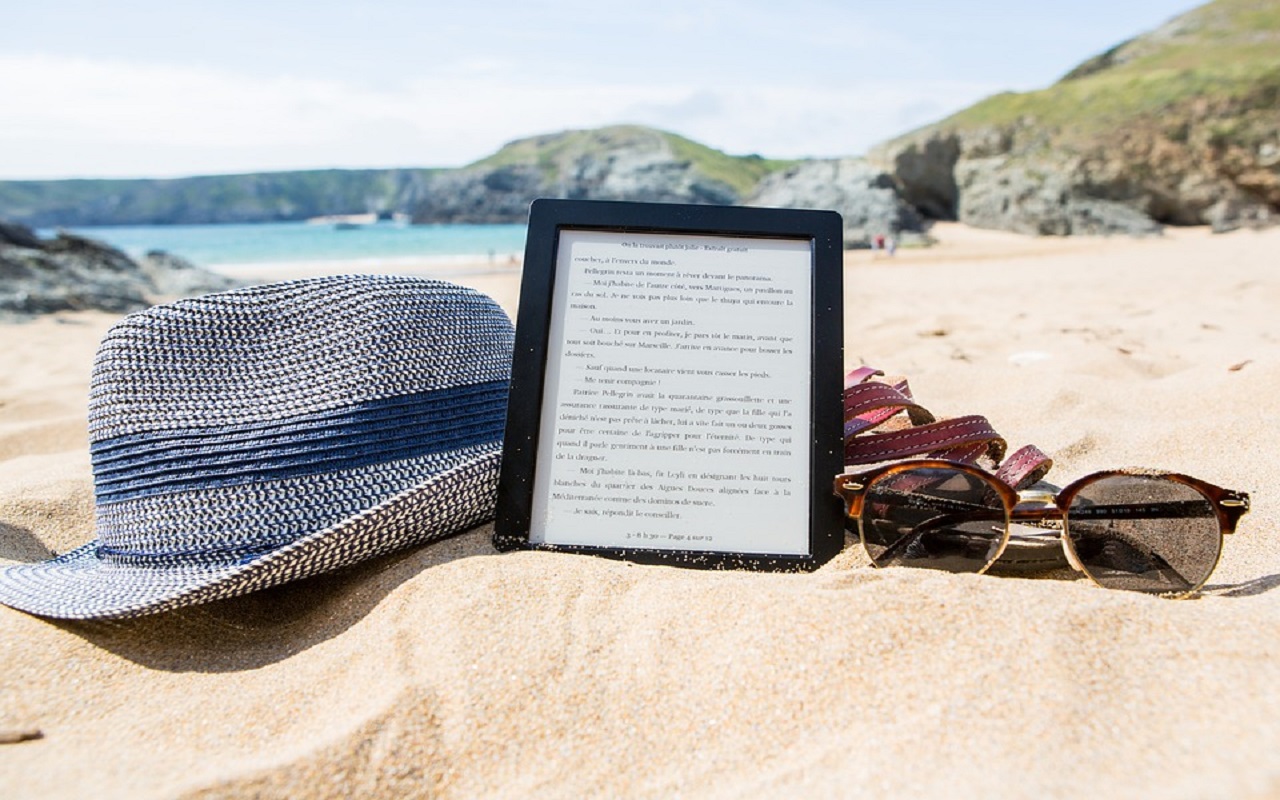
kindle
Powered by BiblioCommons.
BiblioWeb: webapp02 Version 4.27.0 Last updated 2025/05/27 09:27
Back to Top